Jupyter environment
You can start a Jupyter notebook server directly from XNAT and analyse your project data without downloading it. The environment is built on Neurodesk, which provides a large suite of containerised neuroimaging tools alongside the usual Python and Jupyter stack.
RCC support sets up access on request.
Request access to the Jupyter environment
Section titled “Request access to the Jupyter environment”-
Open a ticket with RCC support. Fill in the XNAT projects that should be accessible from the Jupyter environment, then copy the generated email into your mail client.
To rcc-support@uq.edu.au Subject Body -
The support ticket will inform you when your access is set up. Jupyter access setup typically takes around ~24 hours from ticket submission.
Start an interactive session
Section titled “Start an interactive session”-
Open the project you want to work with.
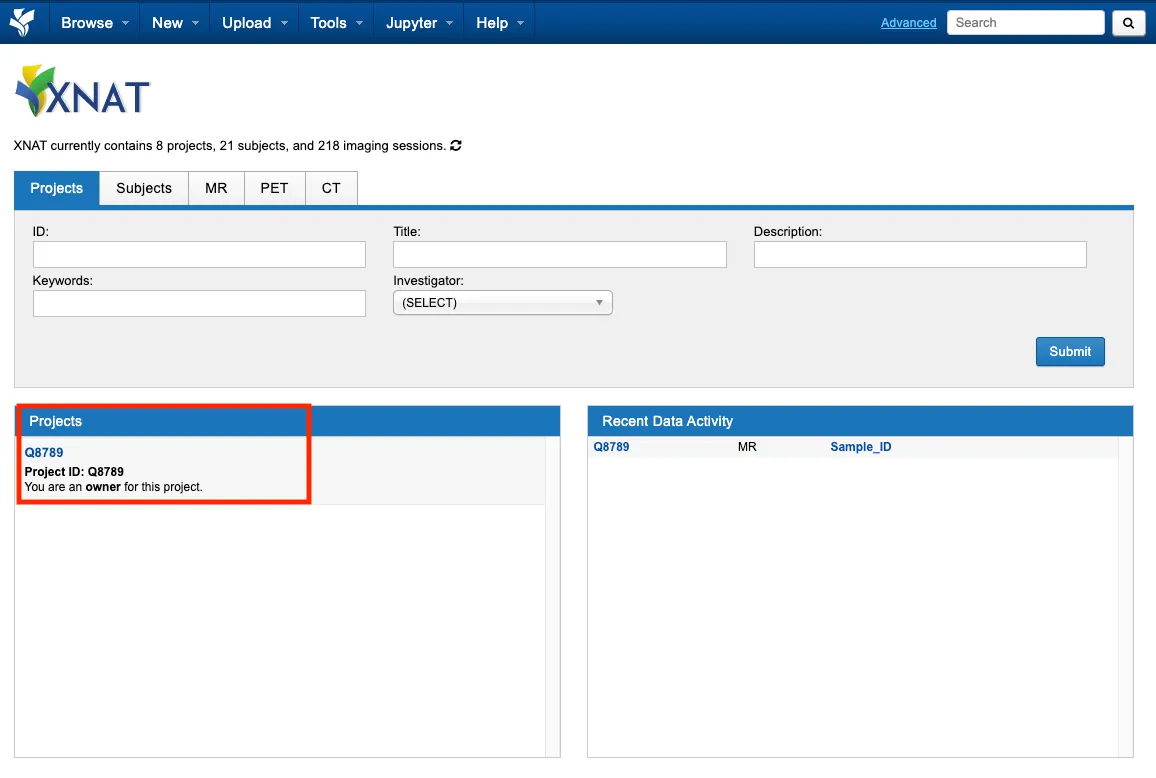
-
Select Start Jupyter Notebook from the Actions menu.
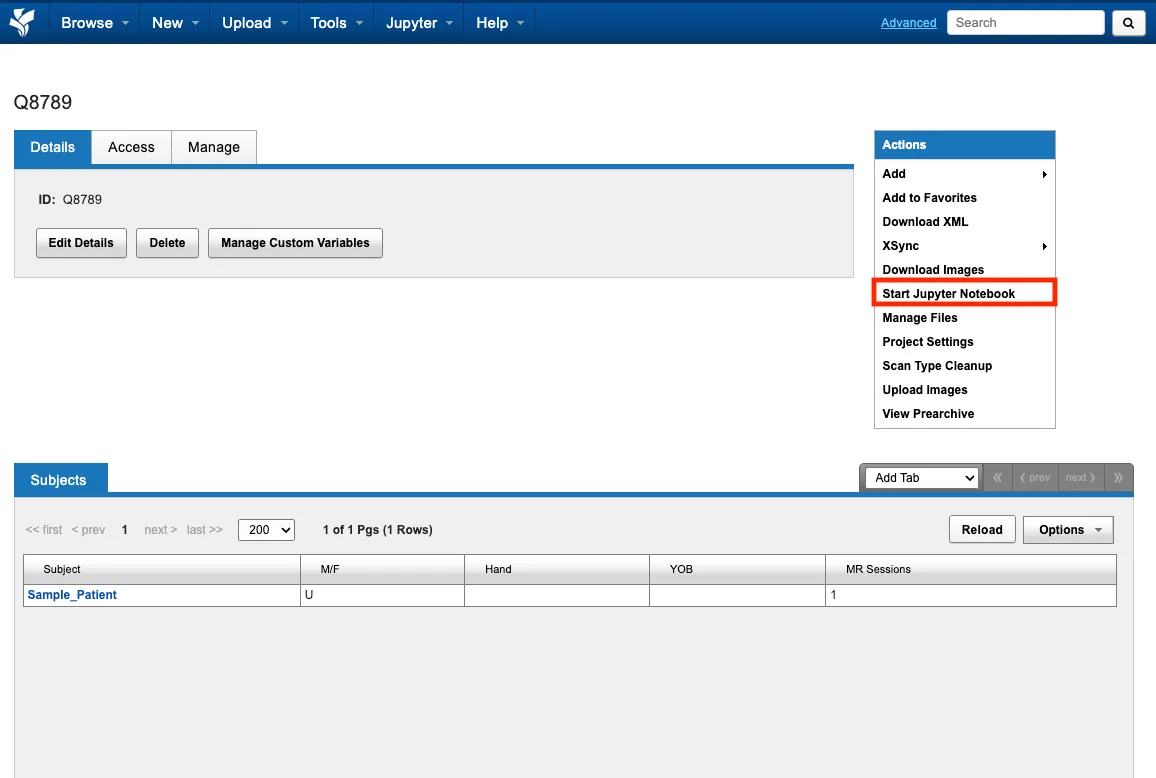
-
Choose a Jupyter Environment and Hardware, then select Start Notebook.
The environment determines which software is available.
neurodesk-latestgives you the Neurodesk toolset. The hardware option sets the memory and CPU available to the server, so pick a size that matches the analysis you are running.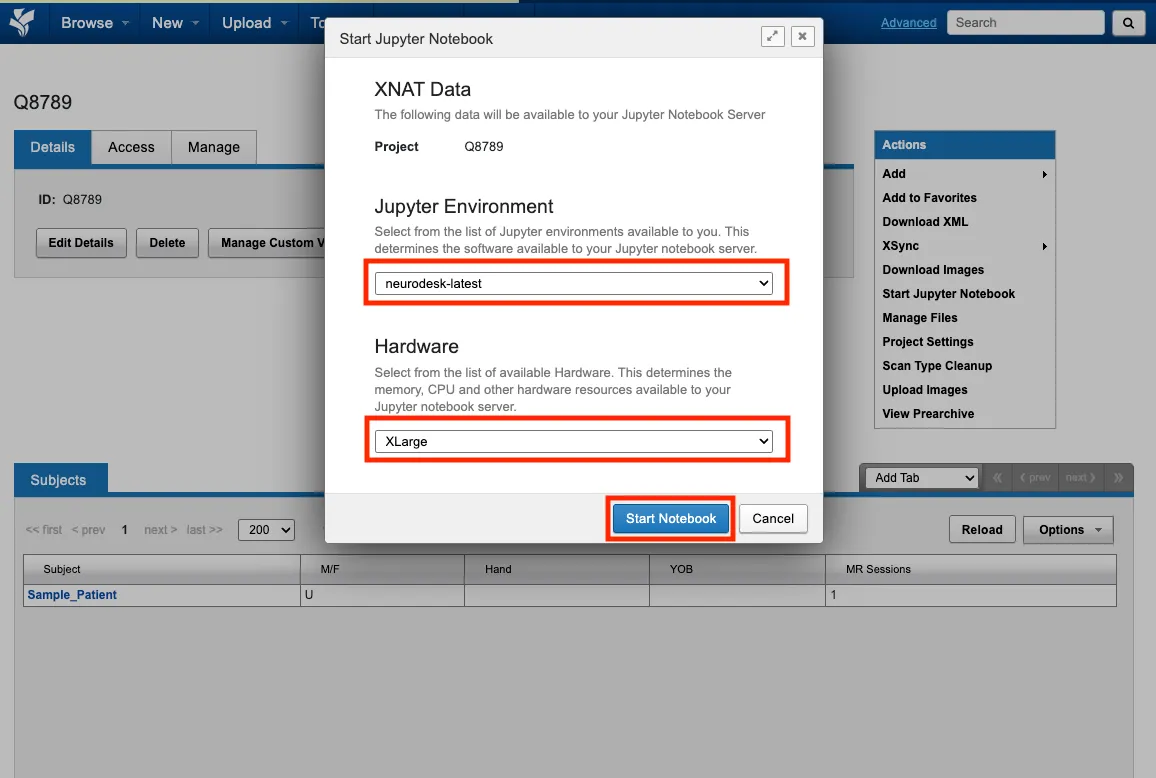
-
Open the Jupyter window once the server has started.
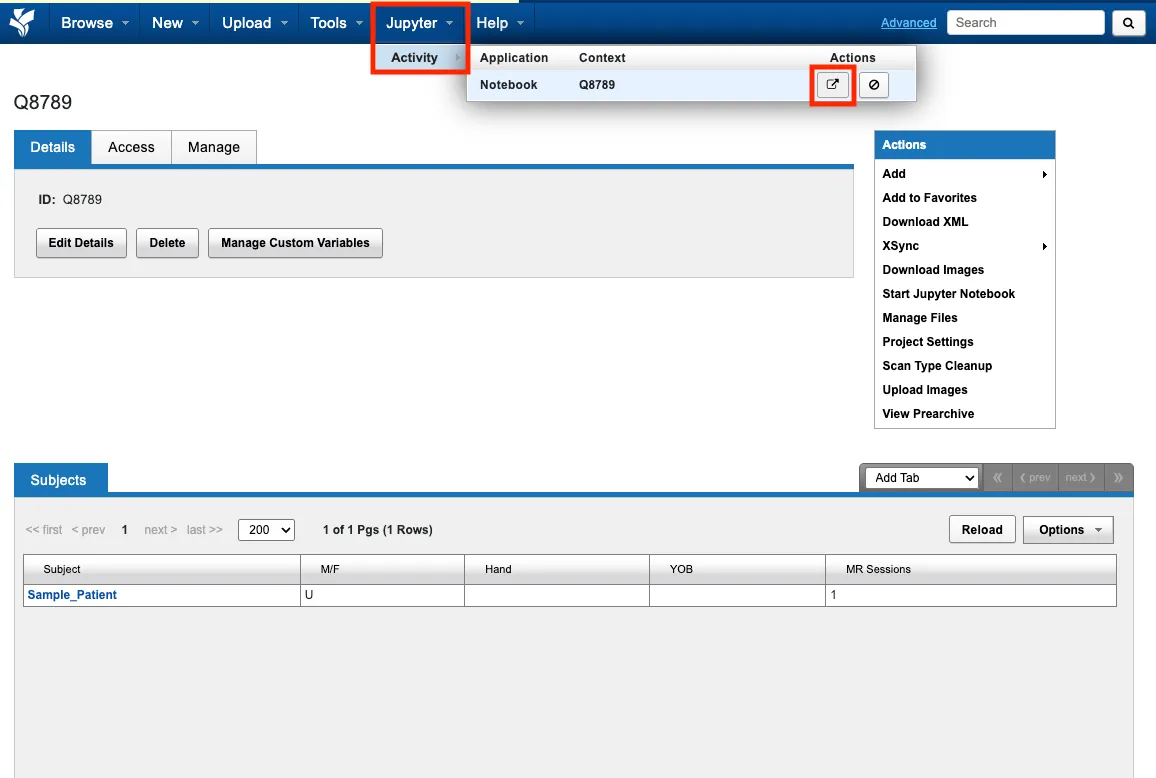
Using interactive session
Section titled “Using interactive session”The project data will be accessible as read-only at:
/data/projectsNext steps
Section titled “Next steps”Your notebook server runs Neurodesk, so its documentation covers the tools themselves.