Downloading Data
There are three ways to get data out of XNAT. Which one you want depends on how much you are taking and what you plan to do with it.
| If you want | Use | Notes |
|---|---|---|
| A whole project, subject or session | Zip download | Everything in one archive, straight from the browser |
| Large downloads, or a resumable transfer | Desktop client | A separate application you install once |
| One scan, or a few scans from a session | Individual scans | Fastest when you only need part of a session |
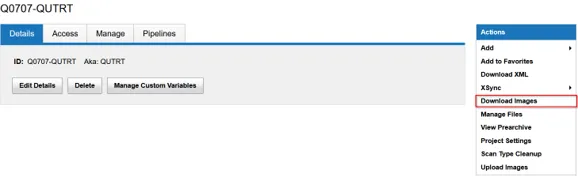
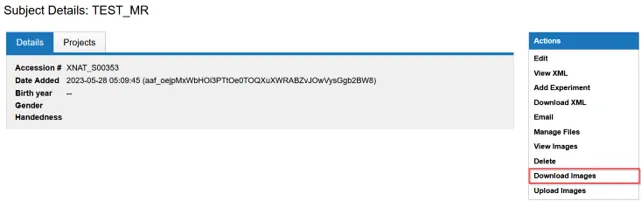
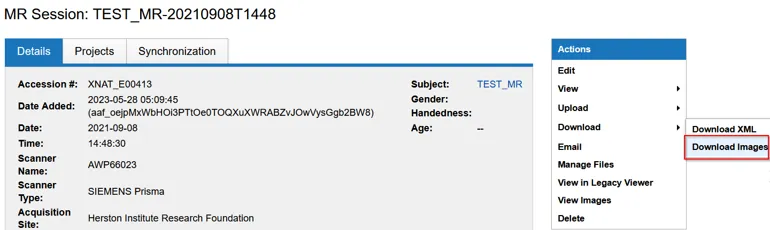
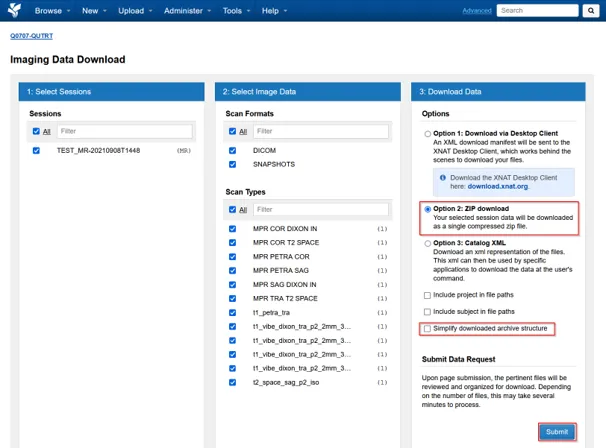
The Project, Subject and Sessions pages each have a Download Images option in the right hand side menu.
-
Open Download Images from the right hand menu.
-
Choose what to include from the download options.
-
Select Option 2: ZIP download.
-
Filter the sessions and scans using the first two columns, then select Submit.
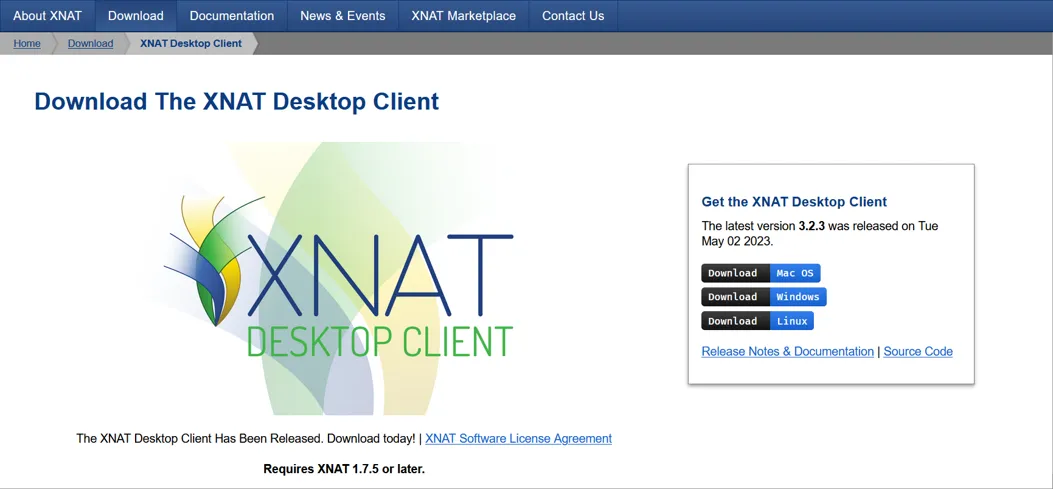
The XNAT Desktop client is a separate application maintained by the XNAT development team. Install it once, then trigger downloads from the browser and hand them to the client.
-
Download and install the XNAT Desktop client for your operating system.
-
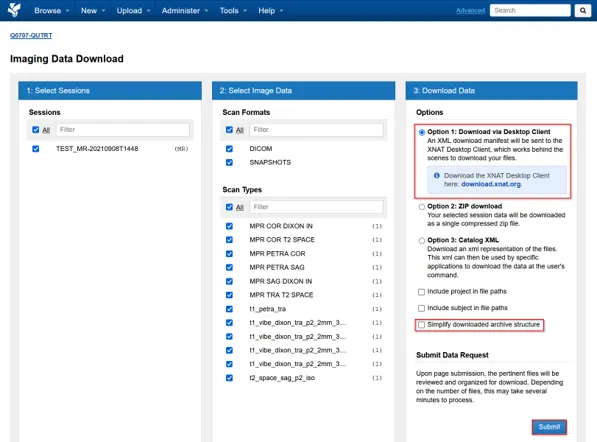
In XNAT, open Download Images from the right hand menu of a Project, Subject or Session.
-
Select Option 1: Download via Desktop Client.
-
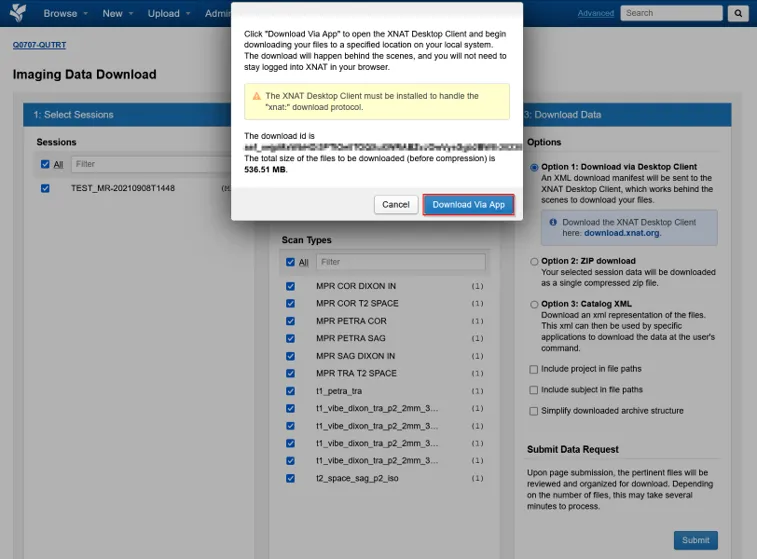
Click Download Via App.
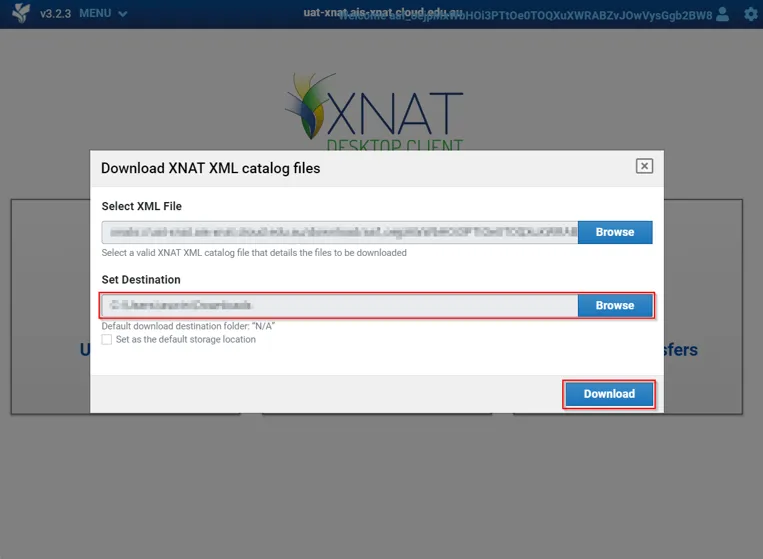
-
Select a local destination folder. The download starts, and you can monitor its progress in the client.
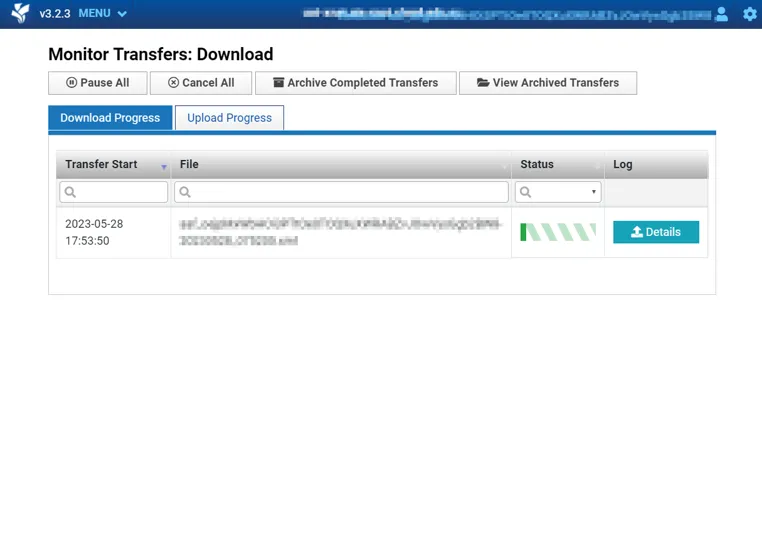
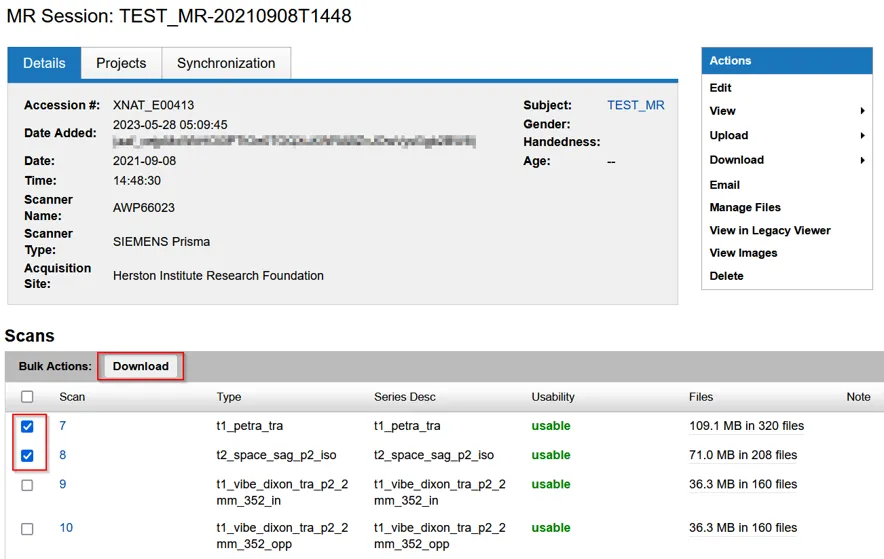
When you only need part of a session, download the scans directly from the Sessions page rather than taking the whole session.
-
Open the session and download the scan from the Sessions page.
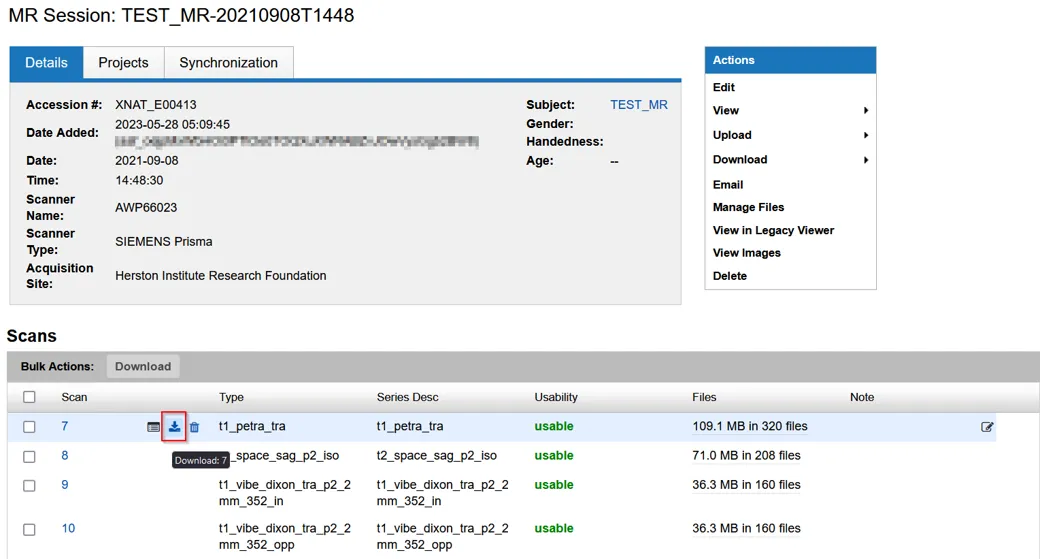
-
To take several at once, select the scans you want and use Bulk Actions.